Routes, activities and timetables
All your routes with their picture and description, search and favourites. Activities, Explore mode and timetables in tabs.

For Open Rails · Windows 10 and 11
SelectOR is a more modern and more complete menu and launcher for Open Rails. See your routes and trains in 3D and start the simulation in one click. While you drive you get a HUD, a mini-map, a cab panel and station announcements. And if you like, you can share a railway company with other drivers.
Features
It does not modify Open Rails: it reuses the components you already have installed and starts its simulator with your content.
All your routes with their picture and description, search and favourites. Activities, Explore mode and timetables in tabs.
A rotatable 3D view of the locomotive and the full 2D consist, car by car, before you set off.
In Explore mode you choose the path, time of day, season and weather. The track map shows the start and the destination.
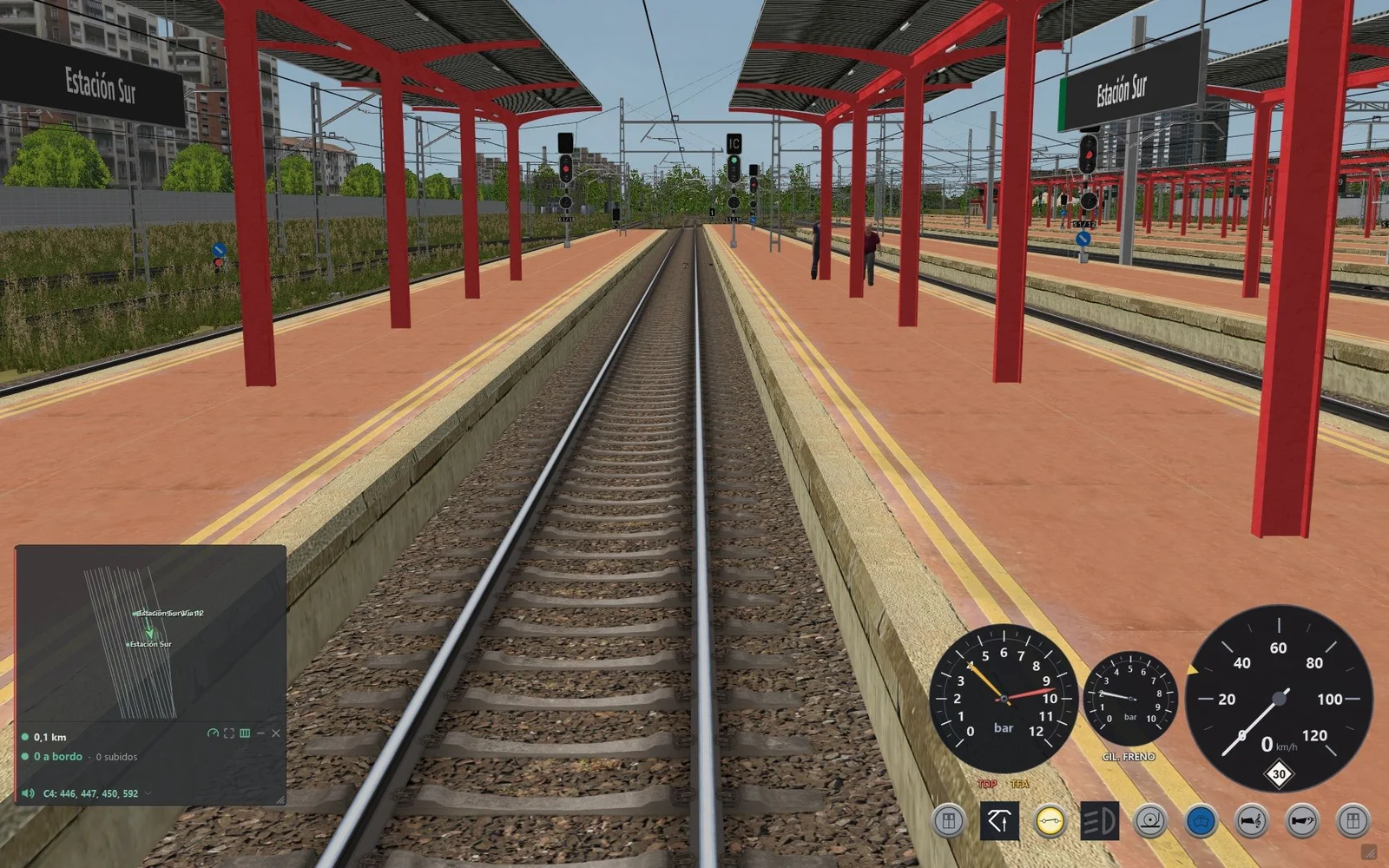
On top of the simulator: track, stations and your train on the map, with a zoom that is remembered. Timer, distance, passengers and a large map.
Air gauges, brake cylinder and a speedometer with braking curve and speed-limit signs. The icons work doors, pantograph, lights, sander and horns.
Announcements recorded by your company that play as you approach each stop, per line, triggered by distance or by seconds.
Create or join a company with other drivers. It has a fleet, a bank, recorded services, ranks, badges and rankings.
Create and edit trains (.con): add, remove, reorder and flip cars. Check length, mass, power and seats.
SelectOR tells you about each new version and updates itself. It only installs packages carrying the author's digital signature.
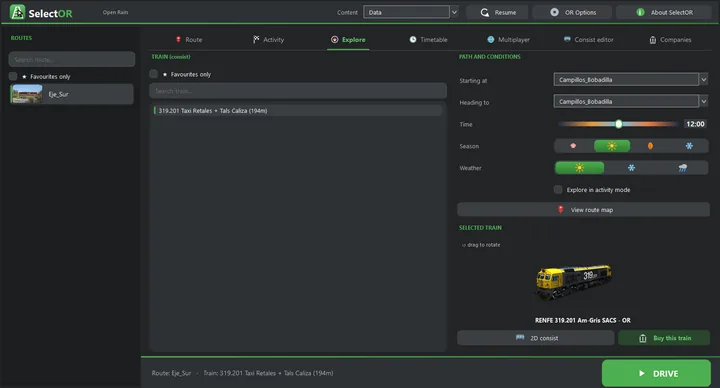
Before you set off
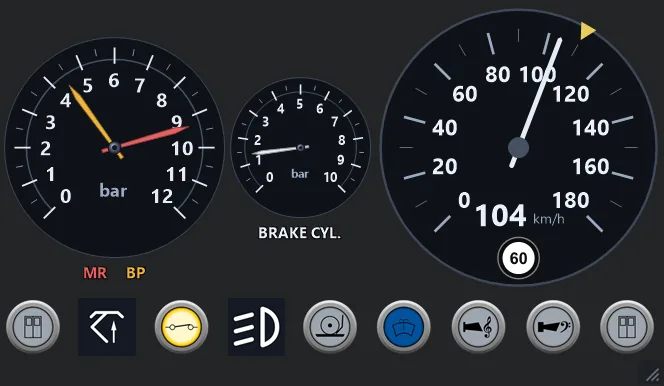
While you drive
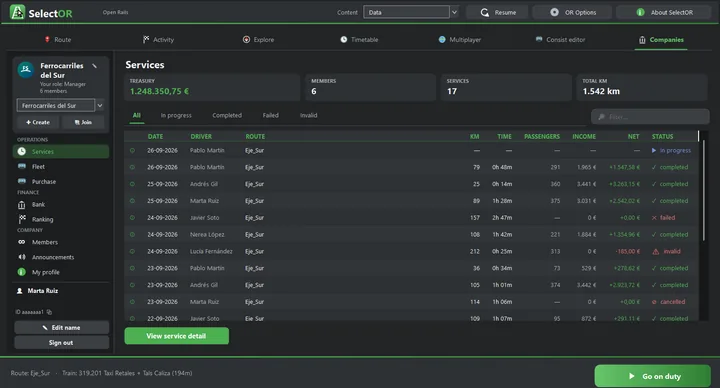
Online mode (optional)
Screenshots
Click an image to see it full size. In the Companies screenshots, the company data are examples.
Requirements
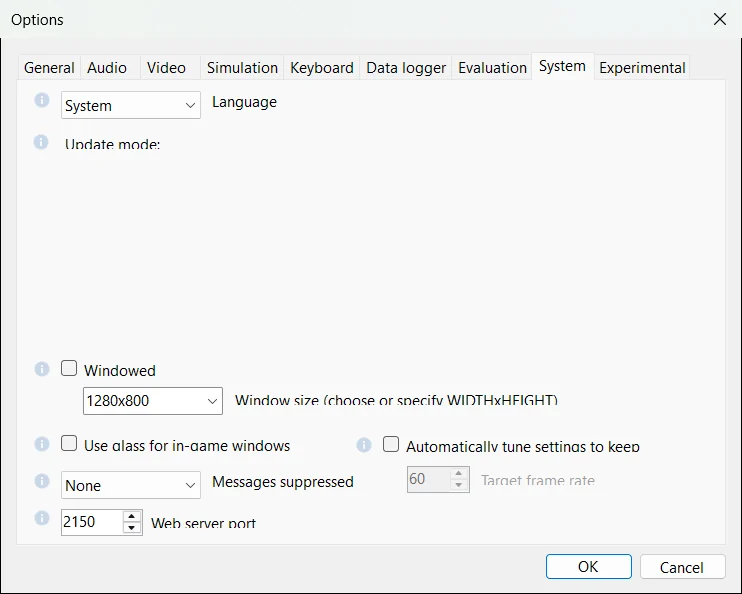
Without it, the driving tools (HUD, mini-map, cab panel, passengers and station announcements) do not appear. SelectOR connects to 127.0.0.1:2150, only inside your own computer.
| System | Windows 10 or 11, 64-bit. |
|---|---|
| .NET | .NET Desktop Runtime 8 (x64) or later. |
| Open Rails | Installed and working, with your content folders set up. The official release, Testing and the New Year versions all work. |
| Location | SelectOR goes inside the Open Rails folder, next to OpenRails.exe. |
| OR display | Windowed or borderless full screen, so the HUD and the cab panel are visible. |
| Internet | Only for Companies, updates and the list of multiplayer servers. |
| Language | SelectOR is in Spanish when Open Rails is in Spanish, and in English otherwise. |
Installation
Get the SelectOR 1.2.34 ZIP and unzip it.
Locate the folder that contains OpenRails.exe and RunActivity.exe.
Copy the contents of «Folder Open Rails» into that folder. Nothing of Open Rails is overwritten.
Check that Web server port is 2150 in the Open Rails Options.
Open SelectOR.exe. Later versions install themselves from the update notice.
Companies
It is optional and needs an internet connection. You sign up with a username and a password in the Companies tab itself.
Drives services with the fleet's trains and checks services, the bank, rankings and their profile.
Does the same as a driver. On top of that, buys and rents trains, looks after the fleet, admits members and records the station announcements.
Creates the company. Can do everything a supervisor does and also assigns the roles, including manager.
Service rules:
What's new
Frequently asked questions
Check that the Open Rails Web server port is 2150 and that no other program is using that port. Run Open Rails windowed or in borderless full screen. The tools appear once the scenario has loaded.
Install the .NET Desktop Runtime 8: choose «Desktop Runtime», x64.
SelectOR has to be inside the Open Rails folder, next to OpenRails.exe. Copy all the contents of «Folder Open Rails» there.
Add your content folders in the Open Rails Options and choose the right set under «Content». Press F5 to read the content again.
Trips shorter than 3 km or than 5 minutes are not recorded. If there was a connection error, press «Register service» in Companies.
Check the following:
Delete the SelectOR.* and shape.mgfx files from the Open Rails folder. Nothing else of Open Rails is touched.
Free and open source. After that, SelectOR updates itself.
d71141a527cdfddd5c0336facb0af7a683cb66a6debfa5b7ed5fb58032173b0c
Check the hash in PowerShell with Get-FileHash SelectOR_V1.2.34.zip.
Contact
Found a bug or have an idea to improve SelectOR? Tell me here. If you would like an answer, leave your email.